
What is a PDF & Why Convert Files to PDF on Laptop?
A PDF (Portable Document Format) is a standardized file format developed to represent documents independently of application software, hardware, and operating systems. Every PDF file encapsulates a complete description of a fixed-layout flat document, including text, fonts, vector graphics, raster images, and security settings.
When working on laptops—whether for corporate business, academic assignments, or official paperwork—converting raw files (like text documents, spreadsheets, or image scans) into PDF format ensures your document retains its exact layout and formatting on any receiving laptop or printing device.
1. Universal Document Formatting
Raw document files (.docx) frequently lose font styles, page numbers, and table alignments when opened on different laptops or older software versions. PDF files lock down all elements so your document renders 100% identically everywhere.
2. Password Security & Encryption
Laptop PDF converters support 128-bit and 256-bit AES encryption. You can easily restrict viewing, copying, or printing of sensitive financial statements, tax forms, and legal agreements with master passwords.
3. 100% Offline Local Processing
Unlike cloud conversion websites where confidential files are uploaded to third-party servers, desktop virtual PDF printers run natively on your laptop CPU with total data isolation.
How to Download & Install PDF Converter on Laptop
Follow these four sequential steps to set up a clean, high-performance virtual PDF printer on your computer.
Evaluate & Select Verified PDF Converter Software
Before downloading software, select the application best suited for your laptop operating system:
- Desktop PDF Creator Suite (Recommended): Free, standalone offline utility including virtual printer driver, document merging, page splitting, OCR text recognition, and file compression.
- Native Operating System Virtual Printer: Built-in system driver with zero download required.
- Integrated System PDF Engine: Embedded directly into modern laptop print subsystems.
Download the Official Executable Setup File (.exe / .dmg)
Visit the developer's official download page. Choose the 64-bit installer for modern laptop processors. Save the executable installer file into your laptop's default Downloads directory.
.exe or .msi | File Size: ~30 MB | Privileges: Admin Required
.dmg or .pkg | File Size: ~45 MB | Gatekeeper: Signed Certificate
Run Setup Wizard with Administrator Privileges
Open your Downloads folder. Right-click the installer file (e.g. pdf-converter-setup.exe) and select "Run as Administrator". When User Account Control (UAC) prompts for confirmation, click Yes.
- Accept the End User License Agreement (EULA).
- Select the default installation folder.
- Ensure the checkbox "Install Virtual PDF Printer Driver" remains checked.
- Click Install and wait for the progress bar to finish. Click Finish.
Verify & Configure Virtual PDF Printer Settings
Test your newly installed PDF converter by opening a text editor or document. Press Ctrl + P. In the printer list dropdown, verify that the Virtual PDF Printer appears as an active printer driver.
Select the PDF printer, click Print, choose your destination folder, and give your new PDF file a name. Setup is complete!
How to Convert Documents, Spreadsheets & Images to PDF on Laptop
Step-by-step practical conversion tutorials for Documents, Spreadsheets, Images, Slides, and Webpages.
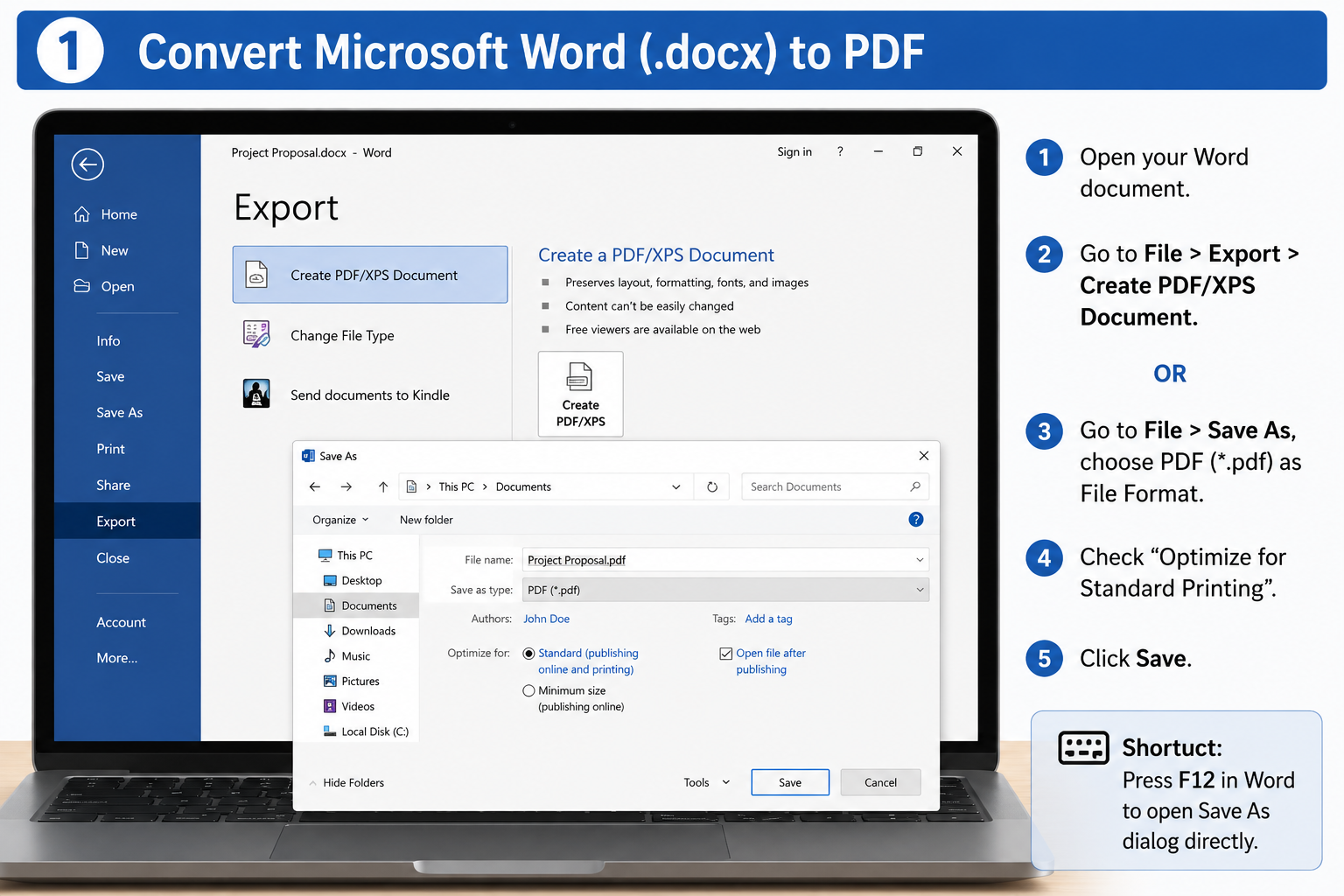
1. Convert Text Document (.docx) to PDF
Open your document in your word processor. Click File > Export > Create PDF. Alternatively, click File > Save As, set File Format to PDF (*.pdf), check "Optimize for Standard Printing", and click Save.
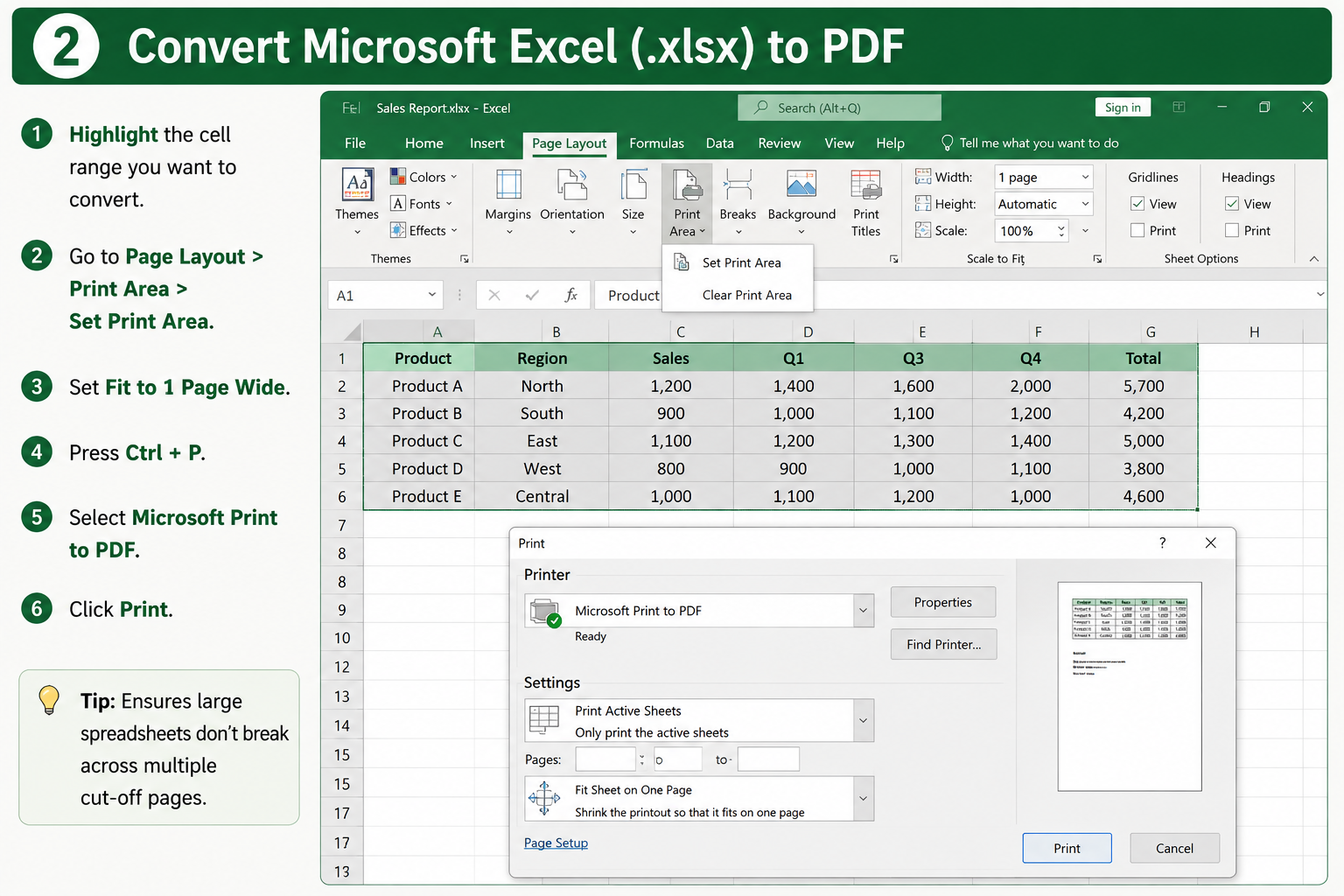
2. Convert Spreadsheet (.xlsx) to PDF
Highlight the cell range you want to convert in your spreadsheet. Go to Page Layout > Print Area > Set Print Area. Set Fit to 1 Page Wide. Then press Ctrl + P, select your Virtual PDF Printer, and click Print.
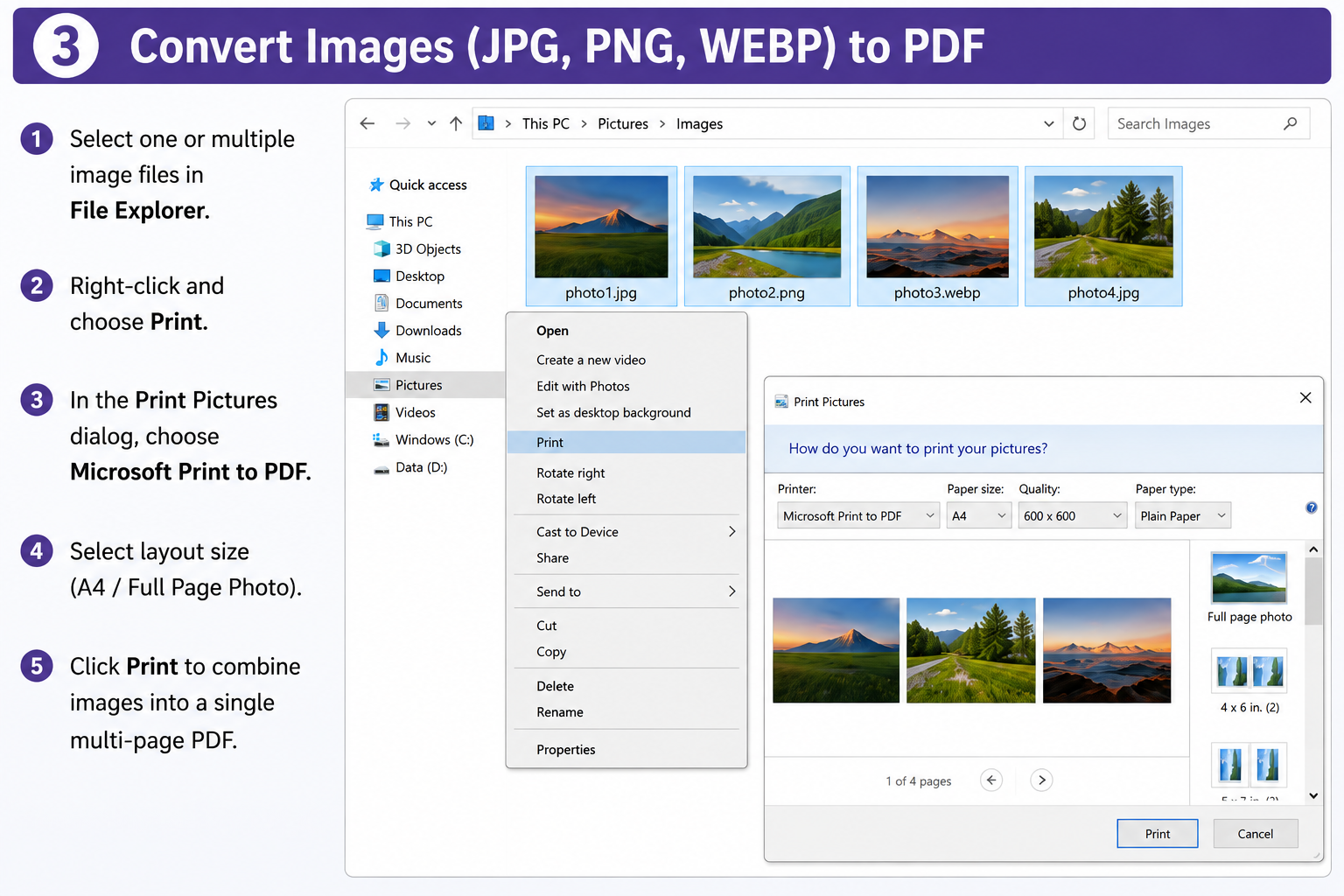
3. Convert Images to Multi-Page PDF
Select one or multiple image files in your file manager. Right-click and choose Print. In the print dialog, choose the Virtual PDF Printer, select layout size (A4 / Full Page Photo), and click Print to combine images into a single PDF.
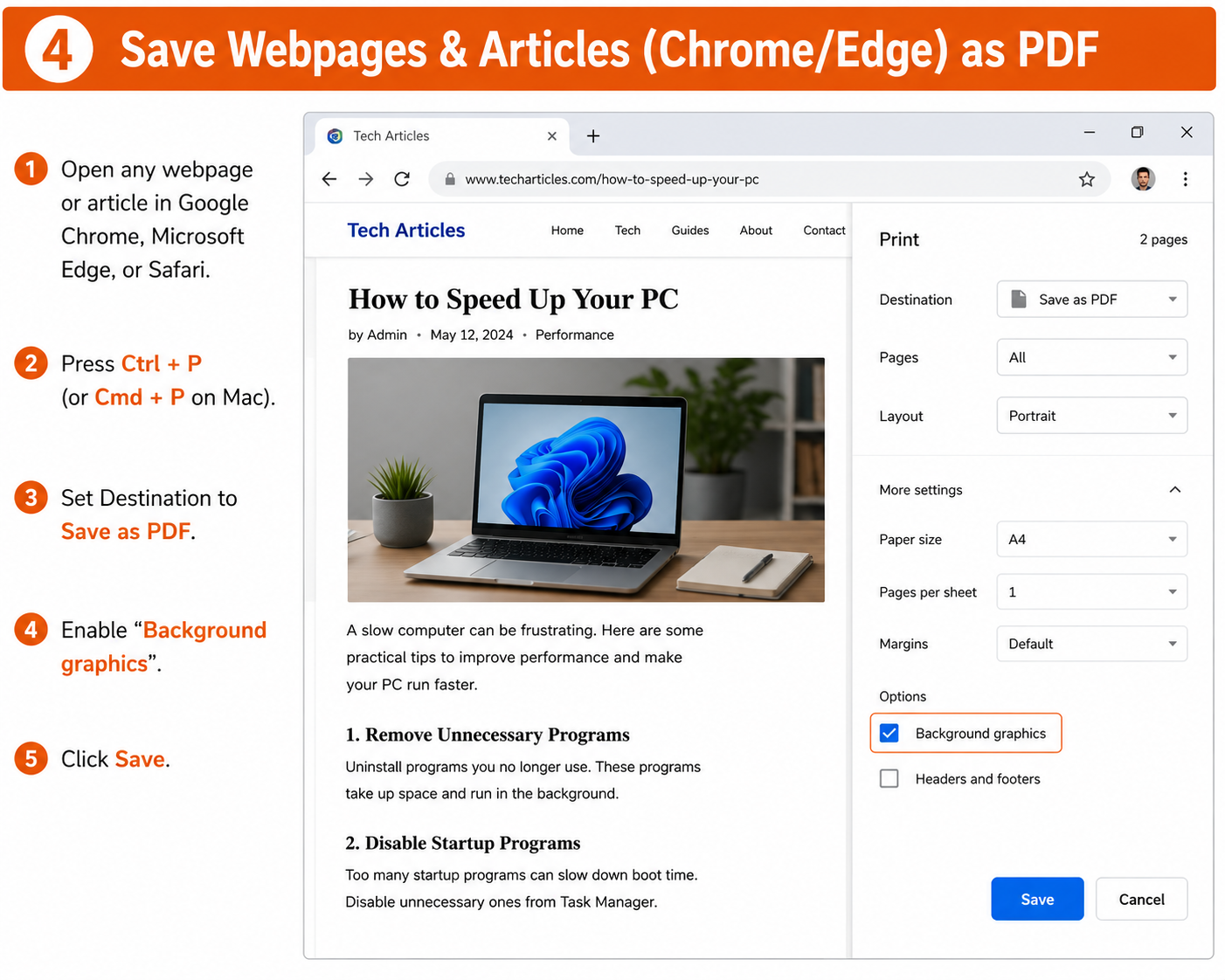
4. Save Webpages & Receipts as PDF
While viewing any article or receipt in your web browser, press Ctrl + P (or Cmd + P). Set Destination to Save as PDF, enable "Background graphics", and click Save.
PDF Converter Software Comparison Matrix
Detailed feature matrix comparing popular PDF converter tools available for laptop users.
| Software / Utility | License Price | OS Compatibility | Virtual Printer Driver | OCR Text Recognition | Merge / Split PDF | Installation Ease |
|---|---|---|---|---|---|---|
|
Desktop PDF Creator Suite
|
100% Free | Windows 11, 10, 8, 7 | Included | Included | Included | Very Easy |
|
Built-in OS Virtual Printer
|
Pre-installed | Windows 11, 10 | Included | — No | — No | Automatic |
|
Standalone PDF Writer
|
Free Basic | Windows 11, 10 | Included | — No | — Paid Upgrade | Easy |
|
Native Graphics Engine
|
Pre-installed | macOS (All versions) | System Level | — No | Via Preview | Automatic |
Troubleshooting & Installation FAQ
Common questions and answers regarding laptop PDF converter downloads, virtual printer configurations, and setup errors.
.exe installer file in your Downloads folder and select "Run as Administrator". If your security software prompts a warning, click "More Info" and then click "Run Anyway".
services.msc, press Enter. Scroll down to Print Spooler, right-click it, select Restart (or Start), and set Startup type to Automatic.